How to Show Live Internet Speed on Your Windows 10 & 11 Taskbar
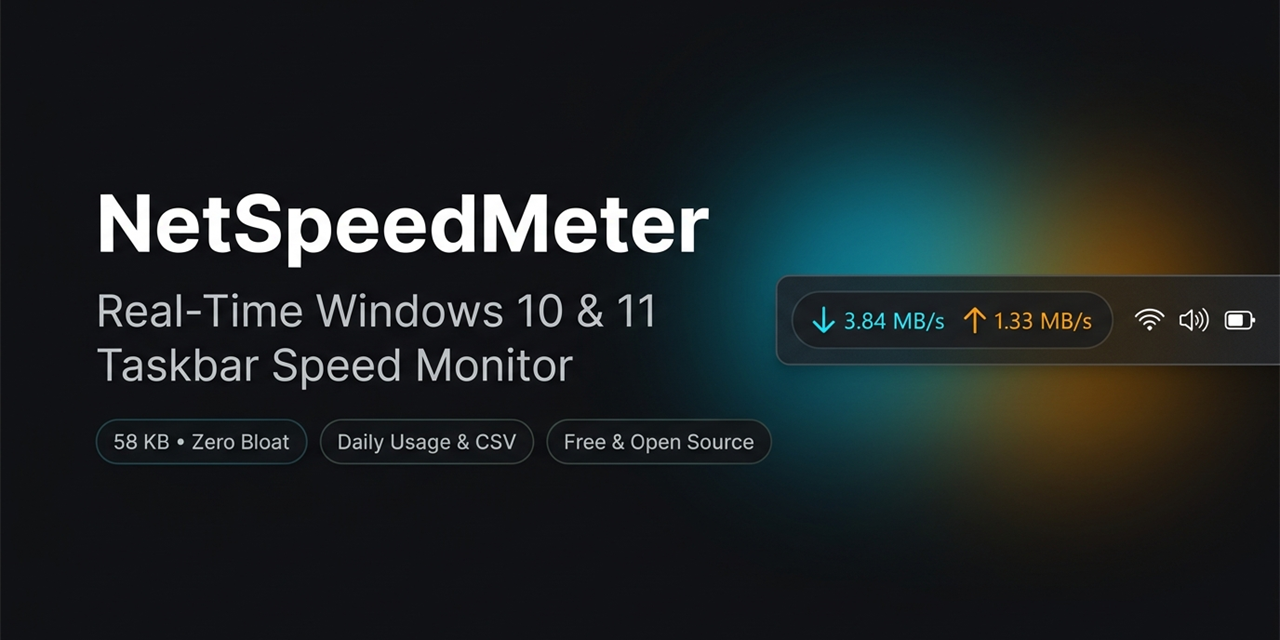
If you upgraded to Windows 11, you probably noticed one small utility is missing: a simple live Download/Upload speed readout right on the taskbar. Traditional deskband tools stopped working cleanly on the redesigned Windows 11 taskbar, and most modern alternatives are heavy apps loaded with ads or background bloat.
We built NetSpeedMeter at GrafiGrow to solve that cleanly—a tiny (~58 KB), free, open-source Windows 10 & 11 utility that snaps right beside your system tray.
Why NetSpeedMeter?
- Zero Bloat (~58 KB): Built natively on the .NET Framework already included in Windows 10 and Windows 11.
- PC & High-DPI Laptop Ready: Scales crisply across 100%, 125%, 150%, and 200% displays and protects against bogus speed spikes when a laptop wakes from sleep.
- Daily Usage History & CSV Export: Double-click the speed widget anytime to view daily Download, Upload, Total Data, and Peak Speeds—or export reports to CSV.
- Fullscreen Auto-Hide: Automatically hides during fullscreen games or movies, then reappears immediately when you exit.
- 100% Private & Offline: Reads local network adapter statistics only—zero telemetry, zero ads, MIT open source.
Quick 15-Second Setup
- Download NetSpeedMeter-v1.1.0-Setup.exe (or the Portable ZIP) from the official download page.
- Run the installer—no Administrator privileges required.
- Drag the widget anywhere on screen or leave it snapped next to your taskbar clock. Right-click for layout style, opacity, network adapter, and startup options.
Download NetSpeedMeter Free
Compatible with Windows 10 & Windows 11 (PCs & Laptops). Open source under the MIT License.